Managing users
Dagster+ allows you to grant specific permissions to your organization's users, ensuring that Dagster users have access only to what they require.
In this guide, you'll learn how to manage users and their permissions using the Dagster+ UI.
- A Dagster+ account
- The required Dagster+ permissions:
- Organization Admins can add, manage, and remove users
- Admins can add users
Before you start
- If System for Cross-domain Identity Management specification (SCIM) provisioning is enabled, you'll need to add new users in your identity provider (IdP). Adding users will be disabled in Dagster+.
- If using Google for Single sign-on (SSO), users must be added in Dagster+ before they can log in.
- If using an Identity Provider (IdP) like Okta for SSO, users must be assigned to the Dagster app in the IdP to be able to log in to Dagster+. Refer to the SSO setup guides for setup instructions for each of our supported IdP solutions.
SCIM provisioning does not affect the ability to manage service users. Service users are always created and managed through the Dagster UI.
By default, users will be granted Viewer permissions on each deployment. The default role can be adjusted by modifying the sso_default_role deployment setting.
Adding users to Dagster+
- Sign in to your Dagster+ account.
- Click the user menu (your icon) > Organization Settings.
- Click the Users tab.
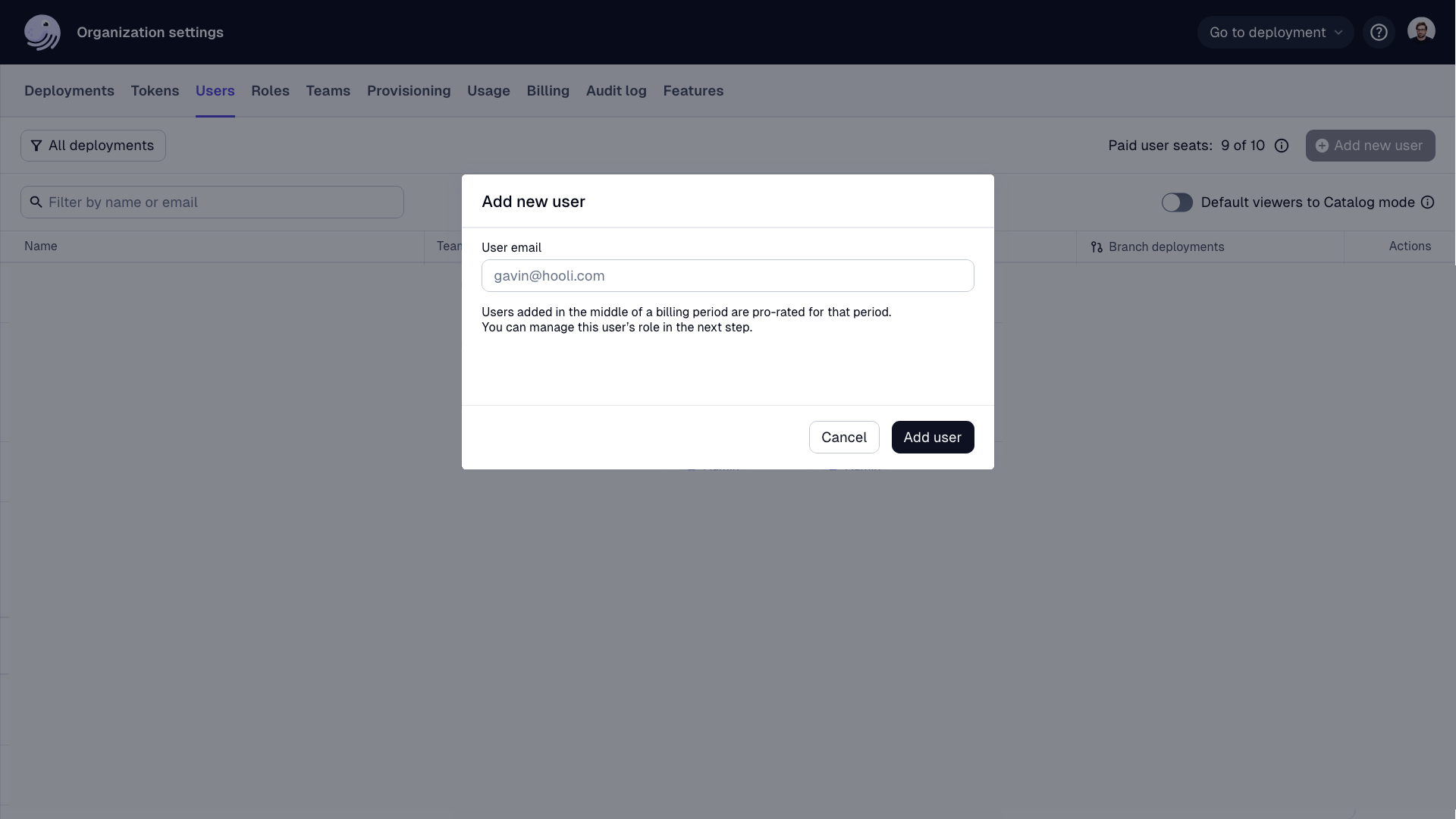
- Click Add new user.
- In the User email field, enter the user's email address.
- Click Add user.
After the user is created, they will be notified via email, and you can add the user to teams and assign user roles for each deployment.
Adding users to teams
Teams are a Dagster+ Pro feature.
Teams are useful for centralizing permission sets for different types of users. Refer to Managing teams for more information about creating and managing teams.
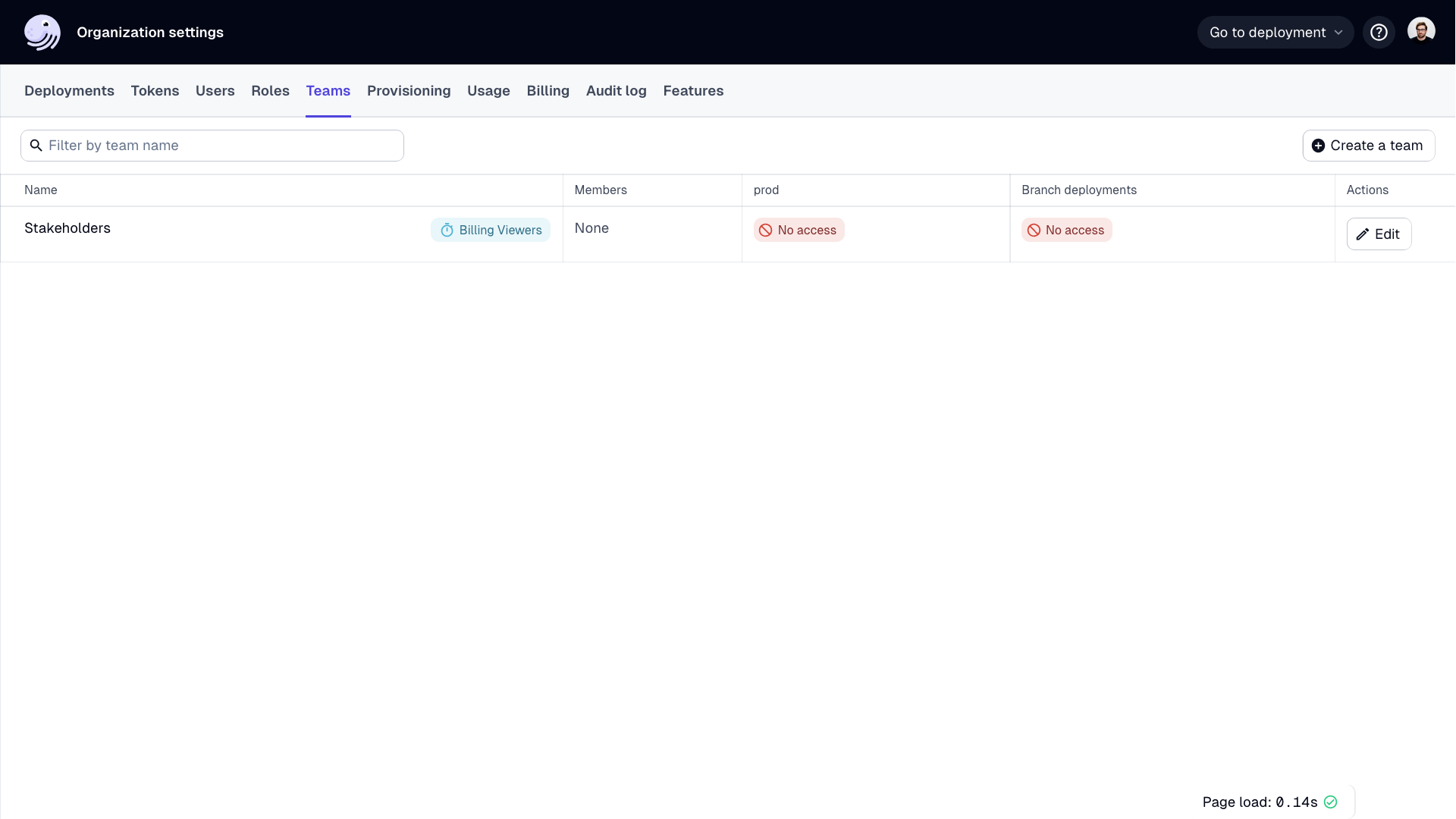
When determining a user's level of access, Dagster+ will use the most permissive role assigned to the user between all of their team memberships and any individual role grants. Refer to Managing user roles and permissions for more information.
Assigning user roles
In the Roles section, you can assign a user role for each deployment, granting users a set of permissions that controls their access to various features and functionalities within the platform. You can also set a user role for all branch deployments.
Dagster+ Pro users can set user roles per code location and branch deployment.
- Pro
- non-Pro
To assign a user role for a deployment:
- Next to a deployment, click Edit user role.
- Select the user role for the deployment. This user role will be used as the default for all code locations in the deployment.
- Click Save.
- To select user roles for individual code locations in a deployment:
- Click the toggle to the left of the deployment to open a list of code locations.
- Next to a code location, click Edit user role.
- Select the user role for the code location.
- Click Save.
- To select a user role for a specific branch deployment:
- Next to the branch deployment, click Edit user role.
- Select the user role to use for the branch deployment.
- Click Save.
- Click Done.
To assign a user role for a deployment:
- Next to a deployment, click Edit user role.
- Select the user role for the deployment. This user role will be used as the default for all code locations in the deployment.
- Click Save.
- To set a user role for all branch deployments:
- Next to All branch deployments, click Edit user role.
- Select the user role to use for all branch deployments.
- Click Save.
- Click Done.
Removing users
Removing a user removes them from the organization.
- Sign in to your Dagster+ account.
- Click the user menu (your icon) > Organization Settings.
- Click the Users tab.
- Locate the user in the user list.
- Click Edit.
- Click Remove user.
- When prompted, confirm the removal.
If you are using a SAML-based SSO solution like Okta, you'll also need to remove the user from the identity provider. Removing the user in Dagster+ doesn't remove them from the identity provider.
Service users
Service users are a Dagster+ Pro feature.
Service users are non-human users that can be used to authenticate API requests, but cannot log in to the UI or be members of a team. Service users do not apply to an organization's seat cap. You can create as many as you need.
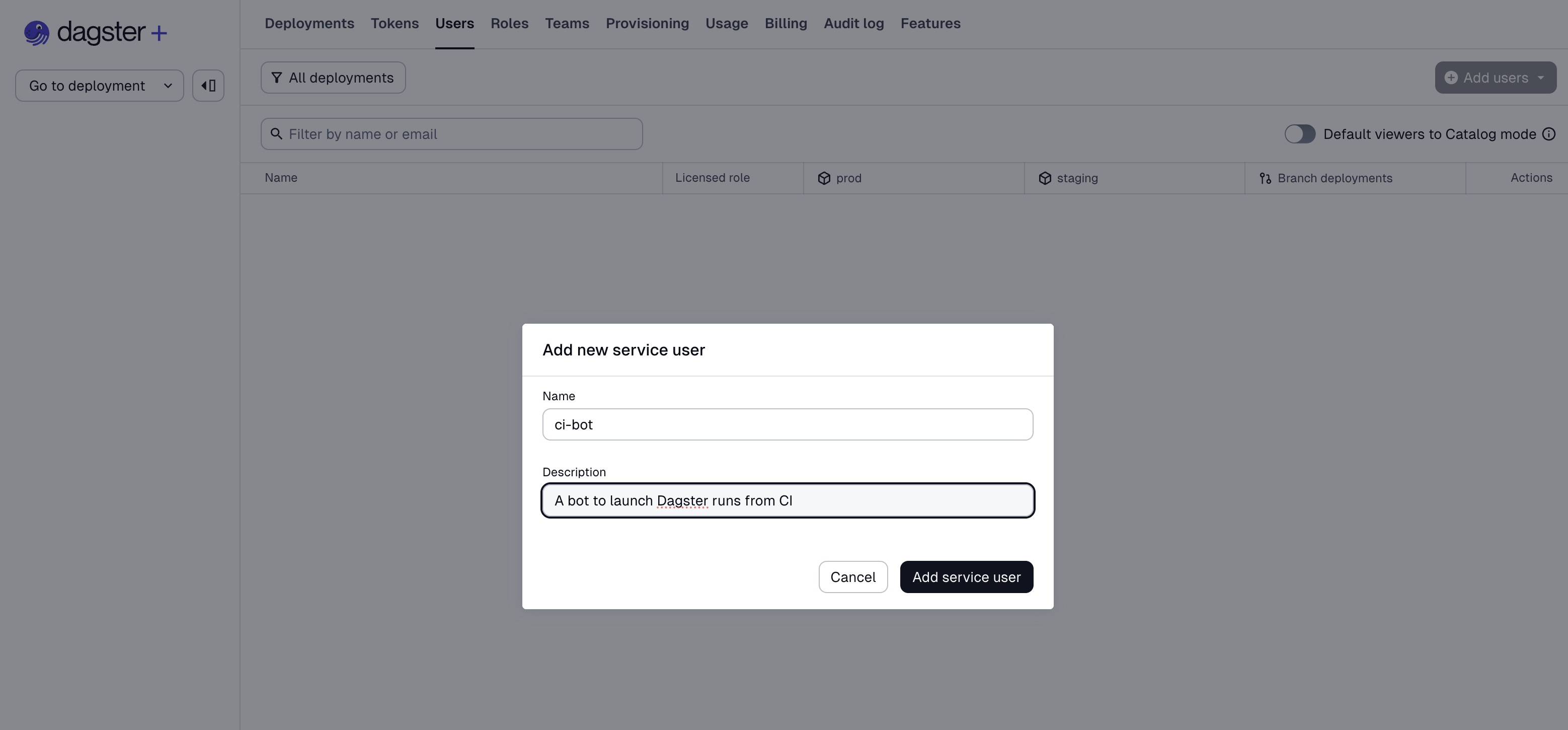
Service users are added, removed, and edited with the same UI as for regular users. If your organization has access to service users, the "Add New User" button above the Users table will instead be a dropdown allowing you to select between adding a new human user or a new service user.

The primary identifier for a service user is its name, which must be unique
within the organization. A description may also optionally be provided:
Once the service user has been created, you will be presented with the same permissions management UI as for human users:
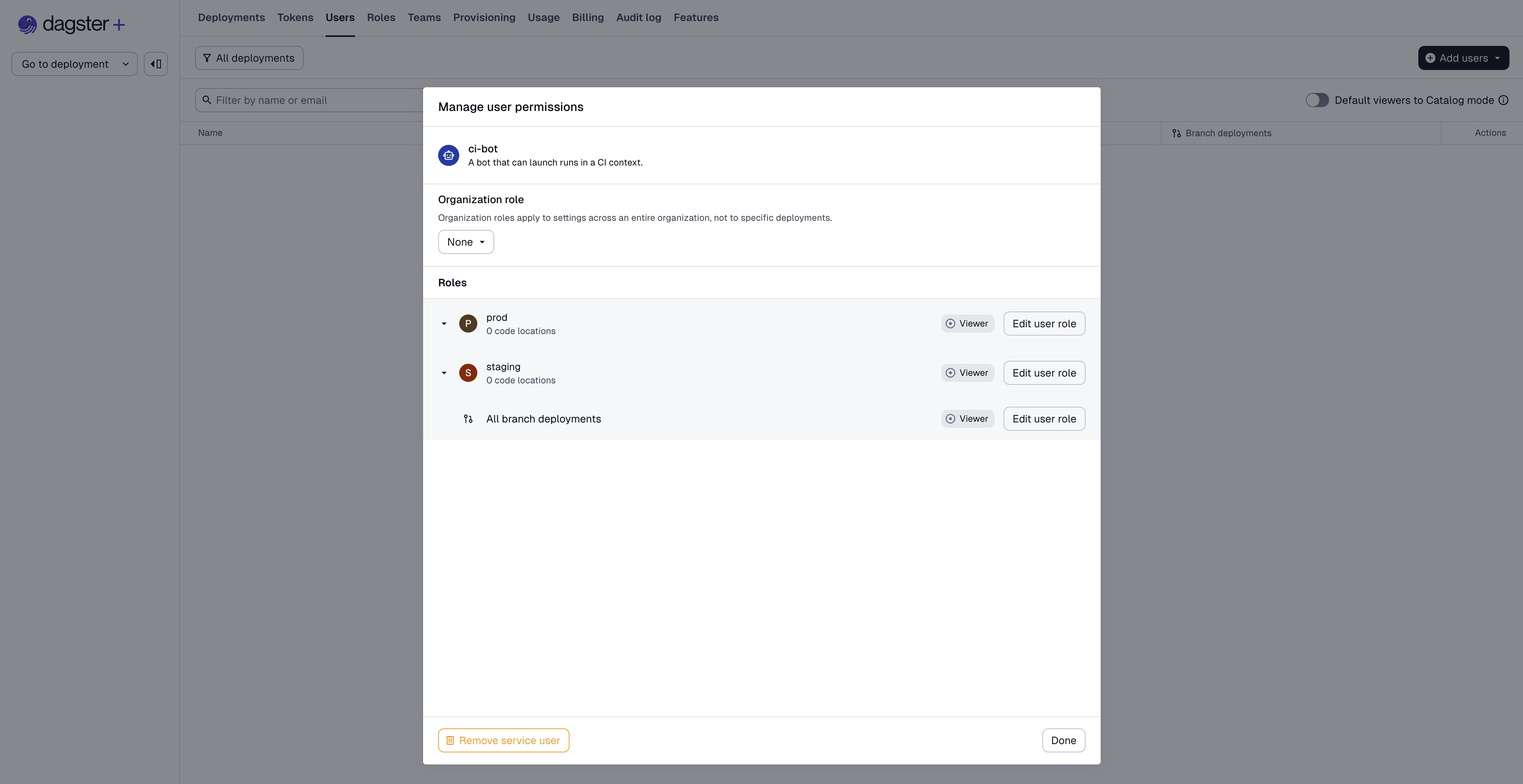
You will typically want to immediately create a token for a service user after creating it, since service users cannot do anything without a token.
Next steps
- Learn more about role-based access control (RBAC) in Understanding User Roles & Permissions
- Learn more about how to manage teams in Dagster+ in Understanding Team Management in Dagster+
- Learn more about SCIM provisioning in SCIM Provisioning
- Learn more about authentication in the SSO documentation