Billing
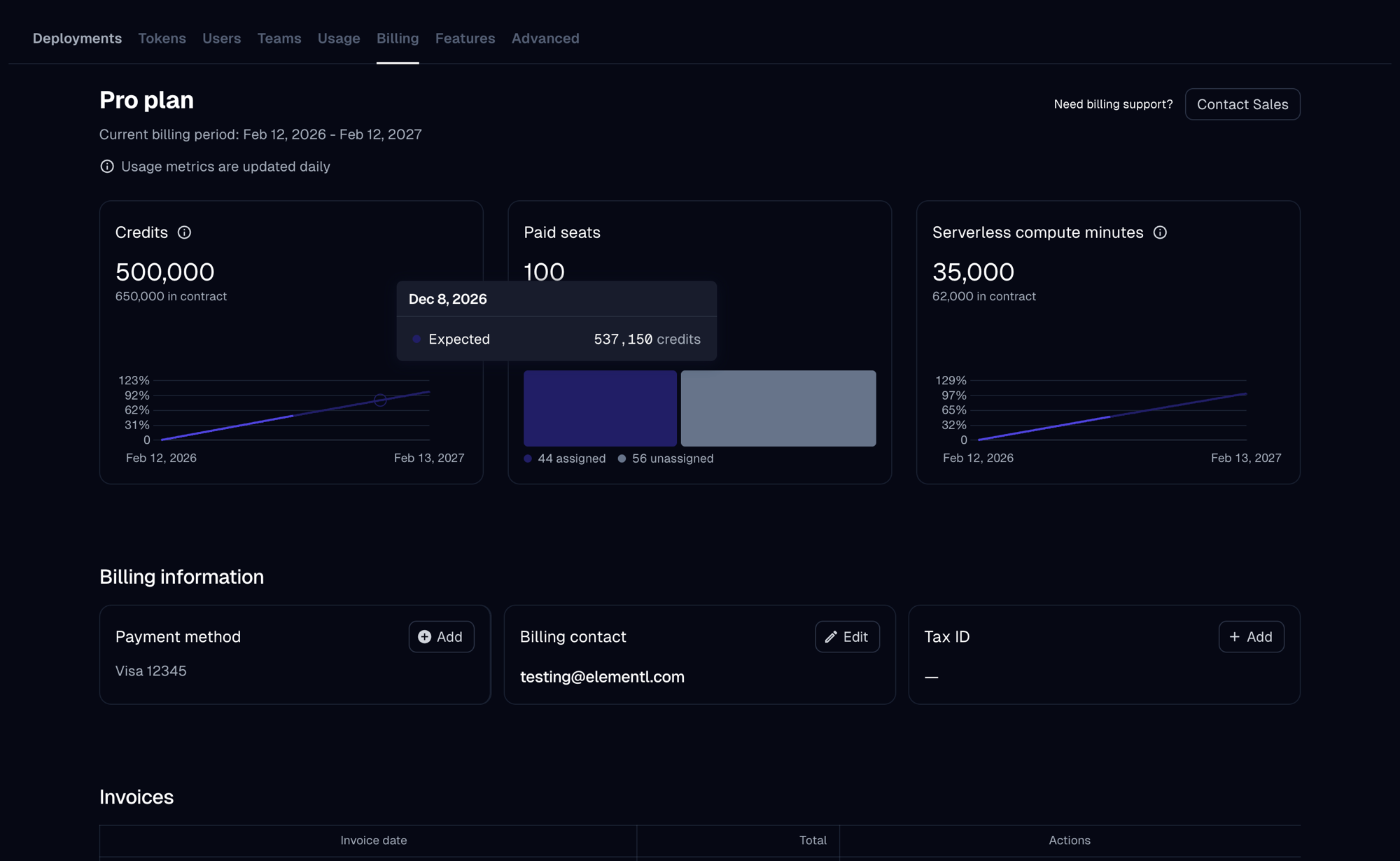
The Billing page in Dagster+ lets you view and manage your subscription plan, payment method, billing contact, tax information, and invoices. To access it, go to Organization settings > Billing in the Dagster+ UI.
Managing billing settings requires the Organization Admin role.
Plans and pricing
For Solo and Starter plan customers, the top of the Billing page shows a plan selection grid with the available tiers. Your current plan is highlighted. Pro and Partner plan customers see their plan name and a Contact Sales button instead of the selection grid.
To change between Solo and Starter, select the plan card and confirm the change. Downgrading takes effect at the end of your current billing period. To move to Pro, click Contact Sales. If your organization is on a trial, the plan you select will begin when the trial ends.
For plan details and pricing, see the Dagster+ pricing page.
Trial banners
If your organization is on a free trial, a banner at the top of the page indicates the trial status:
- No plan selected — prompts you to choose a plan before the trial ends. You won't be billed until after the trial completes.
- Plan selected — shows the date your chosen plan and billing begin.
Usage
Below the plan section, the Billing page shows current-period consumption metrics. Usage data is updated daily.
The current billing period (start and end dates) is shown for Stripe-based subscriptions. Pro plan customers on an annual contract see their contract start and end dates instead.
Credits
The Credits card shows how many Dagster credits have been used during the current period. Credits are consumed by step executions and asset materializations. For details on which operations consume credits, see Credit usage.
For Pro plan customers with annual credit contracts:
- Credits in contract — the total annual credit allotment, including any credits rolled over from prior periods.
- Projected surplus or overage — if usage is trending significantly above or below the contracted amount, a warning appears indicating the projected overage or surplus at the end of the contract period. Unused credits expire at the end of the contract; overages may be billed at a higher rate.
For Solo and Starter customers, the card shows credits consumed and any current overage charge accrued during the billing period.
Paid seats
The Paid seats card shows the number of paid user seats in your organization. Paid users include Editors, Admins, and Org admins. A link to Manage users is provided to navigate to the Users settings page.
Pro plan customers with unit pricing can click Purchase additional seats to request a seat expansion through the UI.
Serverless compute minutes
The Serverless compute minutes card appears if your organization has any Serverless deployments or has used serverless compute. It shows compute minutes consumed during the current period.
For Pro plan customers with annual serverless minute contracts:
- Minutes in contract — the contracted annual allotment.
- Projected surplus or overage — a warning appears if usage is trending significantly above or below the contracted amount.
For Solo and Starter customers, the card shows compute minutes consumed and any current usage charge.
Serverless compute minute data may not include runs from the last 24 hours.
Billing information
The Billing information section contains three cards for managing payment details.
Payment method
The Payment method card shows the credit card on file for your organization. Dagster+ uses Stripe for payment processing. Use the Add button to add a card if none is on file, or click the existing card to update it.
Billing contact
The Billing contact card shows the email address where invoices and billing notifications are sent. This can differ from your login email. Click Edit to update it.
Tax ID
The Tax ID card lets you add or edit one or more tax identification numbers (VAT, GST, etc.) associated with your organization. Adding a valid tax ID may affect how tax is calculated on your invoices.
If your organization is required to provide a tax ID and none is on file, a warning indicator appears on the card.
Invoices
The Invoices section lists past invoices. Each row shows the invoice date, total amount, status, and a download link for the PDF.
| Status | Meaning |
|---|---|
| Paid | Payment was successfully collected |
| Unpaid | Payment has not yet been collected |
| Overdue | Payment is past due |
| Void | Invoice was canceled and will not be collected |
Invoices are posted at the beginning of the month following the end of your trial or billing period.